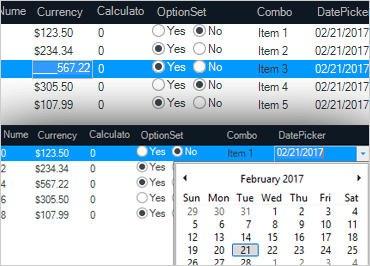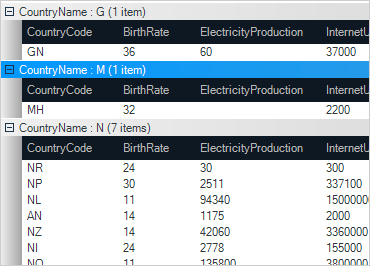
Give users a custom button for adding new empty rows of data at each of the band levels
Add New Row Button
Present your data in new and exciting ways with minimal code by globally defining colors, images, brushes and fonts.
Appearance Objects
Select from multiple button styles, including Office 2003, Visual Studio 2005, Office XP and 3D.
Button Styles
Display and even print your data in almost any form by using row layouts with the card view display style.
Card View with Row Layout
Allow end-users to customize visible columns.
Column Chooser
A fixed filter row allows further filtering incrmentally using "And" and "Or", as well as custom regular expression support.
Column Filtering
Calculate column data at each band level with sum, min, max, average, and count, or perform your own custom calculations.
Column Summaries
Customize how goupings occur, including date, time, quarter, month and number of characters
Custom Grouping
Implement the IDataFilter interface for easy translation of data types stored in a database versus the way you present the data on a form.
Data Filtering
Use Regular Expression Pattern Matching or the IDataError info interface for complete control over data entered into cells. Built-in visual cues give you flexibility on notifying end users of errors in data entry.
Data Validation
Use the Infragistics Default Preset to have a full functional, great looking grid
Default Preset
Use Dropdown or multi-column ComboBox editors to display data form other data tables in grid columns.
DropDown Editing
Customize each column or cell with unique editors for any type of data display and data entry
Embeddable Editors
Allow "empty rows" to mimic an Excel look at feel
Empty Rows
Use the ExcelExporter and a single line of code export your grid data to Excel while preserving all hierarchical data formatting.
Export to Microsoft Excel
Customize how the last column of data is displayed, including extending to the bounds of the grid display
Extend Last Column
Quickly set over 2 dozen properties such as MergeCells, MultiColumnSort, OutlookGroupBy, FixedRows and dozens more using the ground breaking Feature Picker in the Quick Designer.
Feature Picker
Use the Add New Box in conjunction with a Fixed Add Row for rapid data entry in the WinGrid
Fixed Add New Row
Allow users to fix columns to the left most grid column.
Fixed Columns
Pin rows to the top or bottom of the grid, allowing these fixed rows to always be in view while scrolling other grid regions
Fixed Rows
Use the WinCalcManager to add formula Microsoft® Excel formula support to your columns and summaries with easy to use design time and run time designers.
Formula Support
Data which has built-in DataRelations will automatically be displayed in a true hierarchy
Hierarchical Display
Allow Vertical or Horizontal hierarchical data display
Horizontal Hierarchy
Use the Quick Designer to customize the Presets you apply to grids
Manage Presets Designer
Merge cells automatically or on single and multi-column sorting
Merge Cells
Merge like cells together on single or multi-column sort operations
Merged Cells
Apply a single or multi-column dropdown to display related row level data
Multi-Column Dropdown
Allow column level grouping just like Microsoft Outlook
Outlook Grouping
Easily create and apply a preset of look & feel and behavior at design time or run time with either the ApplyPresetFromXML or ApplyPresetFromBinary method.
Presets
Use the custom Print Preview dialog for WYSIWYG (What You See Is What You Get) WinGrid printing.
Printing & Print Preview
Display custom print preview dialogs with thumbnail preview and full theme support using the GridPrintDocument and the PrintPreviewDialog.
Printing and Print Preview
The WinGrid QuickLaunch Designer lets you customize any aspect of the grid in an easy to use, intuitive user interface.