
Create Better User Experiences
Speed up innovation and time to market with a complete design-to-code system. Indigo.Design is a digital product design platform that integrates UI prototyping, design systems, user testing to eliminate design hand offs and reduce costly iterations — enabling true UX design-development collaboration.
Indigo.Design Benefits and Features
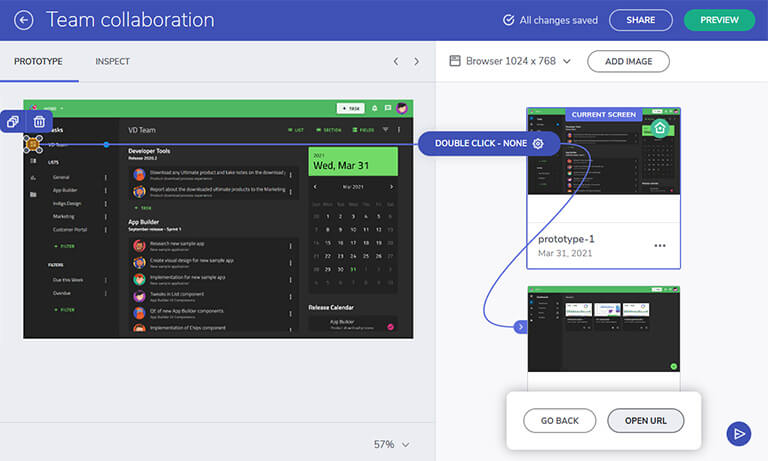
One, Flexible Design System
Create best-in-class UX and UI designs using the Indigo Design System on a single working environment for managers, designers and developers. Easily collaborate with stakeholders and test prototypes in an iterative design process.
- Import designs from Sketch
- Build interactive prototypes with useable components
- Pre-built design patterns
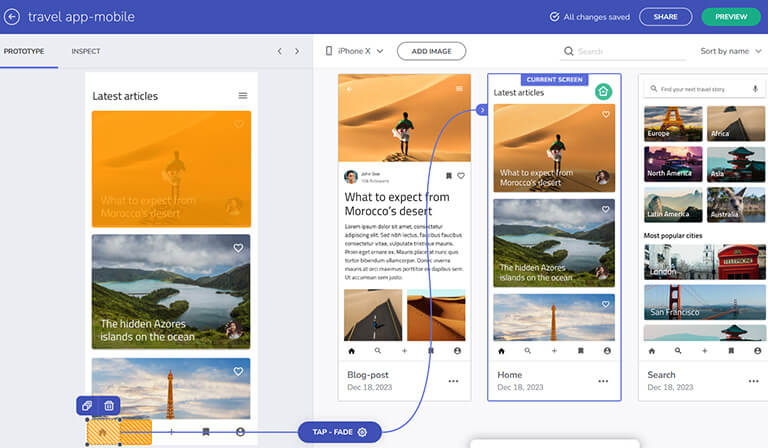
Powerful Rapid Prototyping
Ensure you are deliver beautiful app designs by sharing your projects and getting user feedback fast. This empowers you to identify and resolve issues early in the development cycle, saving time and resources in the long run.
- Drag and drop designs or browse files on your computer
- Collaborate with team members with real time commenting
- Set navigation and create user flows
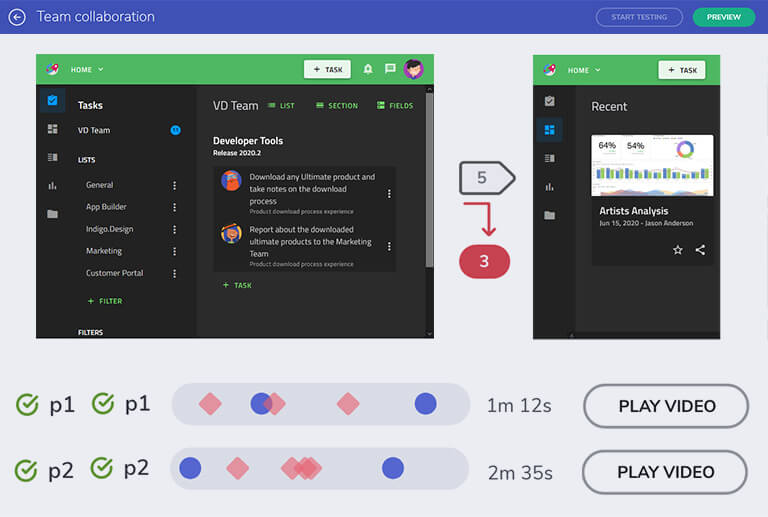
User-test Early and Often
Conduct user testing and get stakeholder feedback early, before coding, to avoid costly iterations with your development team. Get detailed analytics to ensure your design is right before handing it off to developers.
- Test quickly with unmoderated user testing
- View analytics screen-by-screen or via video
- Unlimited number of testers
Try Indigo.Design for Free
Try It Now
Reviews

There isn't any prototyping tool with this kind of animation capabilities. The best for the money. There is a lot of intuitive features for interactive prototyping, usability testing, and collaboration. You can copy/paste your designs from Sketch and animate your interactions in any possible way.

Indigo is a great replacement to wireframing and prototyping tools like Axure and Balsamiq. Ability to create interactive prototypes with animations quickly and also to sync with Sketch to reuse artifacts. We are also starting to include usability testing in our workflows.
Best tool on the market. We looked at all the wireframing tools on the market, and none have the features that Indigo has. The ability to be able to deploy wireframes as a site is invaluable to our proposal process.
Great program for non-technical managers. Display a fully functioning software w/ no coding necessary.
Lets me focus on creative and UI more than anything else. This is extremely important as recruiting mentors and team members relied heavily on demonstrating this UI even though none of our co-founders have any coding experience.
I have worked in Balsamiq and made the switch to Indigo and LOVE the enhanced features.
Extremely easy to design and setup interactions. Testing is a breeze! The training videos are GREAT!
The biggest benefit is that we were able to produce what the end product would look like before we had developed it, and we could demo it to get user feedback. Controls used in the screens matched bootstrap, etc. making it easier for developers to deliver as the prototype matches what can be produced.





Indigo.Design Pricing
Indigo.Design Essential
$49/mo per user or $495 /yr (includes 15% discount)- Powerful, rapid prototyping for unlimited web, mobile, and desktop prototypes in the cloud
- Remote User Testing with Analytics
- Video Replays for User Tests
- Group and Team Collaboration
Learning Resources
Get started with the resources you need to create amazing user experiences.
Learn More
Indigo.Design Tour
Installing the Sketch UI Kits

Building Your First Artboard in Sketch
User Testing Overview
Getting Started with Prototyping
Contact Us About Indigo.Design
Indigo.Design is a complete digital product design platform, with the tools teams need to design, build, and test applications faster. To get more information, please complete the form below and a member of our team will follow-up to confirm and schedule at a date and time that will work with you.
Join the Conversation

Product Release - What's New in Infragistics Ultimate 22.1
Jason Beres [Infragistics]
How to Develop a Design System in Adobe XD
Stefan Ivanov
Building a Sketch Design System: Tips & Tricks
Stefan IvanovFrequently Asked Questions
Questions and Answers for Indigo Design
What is design to code?
Design to code is a process where a product team (including design and development) use a design system, which includes user interface (UI) components, UI patterns and styling options that are represented and back by real-world components. For a team, this means that anything ‘designed’ and be turned into ‘code’. The important distinction between design to code and a ‘code-generator’ is that the code output in a design to code process is clean, usable, and customizable code. Meaning that even the top developers in your company will accept this code output and equal of better to what they would have written by hand.
When a design and development team is in sync, they can use design to code solutions to accelerate product delivery. The real benefit of design to code with Indigo.Design is the enormous time savings - everything the design team creates in Sketch using the Indigo.Design design system, matches our Ignite UI for Angular UI. With the click of a button, the development team can generate high-quality HTML, CSS, and Angular code, from any design from your UX team.
What is a design to code system?
A design to code system helps teams and organizations streamline app creation with a set of tools and best practices that accelerate the process of taking a design and turning it into usable code. Historically, product development and design teams will work in solos, there is a collaboration gap between design and development which slows down innovation. With a deign to code system, a team can have seamless collaboration and eliminate design hand offs, reduce costly iterations, and enable true UX Design-Development collaboration.
The foundation of a reliable and usable design to code system is ensuing there is one design system for UX designers and developers. With an agreed upon corporate design system, back by reusable UI kits with are based on real component libraries, anything that is designed in a design to code system can get turned into usable code output.
Why design to code is a good solution for your business?
And today’s competitive market it is critical that every potential advantage you have in reducing time to market and saving costs is considered. A design to code system offers both cost savings and time savings. If your design team can follow a best-practice iterative design using their favorite design tool like Sketch, the Indigo.Design cloud digital product design platform can get markup, styling, do user testing and usability studies (remote and unmoderated) at scale and ultimately get pixel-perfect code output from a design. With tooling like this to support your teams, you have a leg up on your competition.
Historically, the handoff of designs between a design team and a development team is one of the largest hidden costs of software development. Research shows that 60% of development time is on the user interface, but the tooling to get from an approved design to the right, bug-free code is limited. With Indigo.Design as your design to code solution, you eliminate any slow-down or mistakes in the form of UX bugs that drive this cost up (in terms of time and real money).
Any UX bug fixed during an iterative design phase costs one dollar to fix / change, while that same bug released into the market can cost up to $100 to fix. And these are just examples - you can add 2 to 3 zeros to any one of those numbers – to understand the real cost of letting low-quality design and UX bugs get out the door.
Using a design to code system eliminates these costly errors, and even better, the handoff from design to development in a design to code system generates pixel-perfect HTML and CSS and TypeScript that your development team can then use to build out the remainder of their high-quality application with no UI/UX bugs.
What is Indigo.Design?
Indigo design is a digital product design platform that helps teams accelerate design to code. Indigo.Design has four key pillars:
- Indigo.Design is a prototyping tool
- Indigo.Design is a user testing tool
- Indigo.Design is a design to code tool
- Indigo.Design is a WYSIWYG app builder
We created Indigo.Design to helps team’s delivery higher quality software faster than ever before. Indigo.Design reduces the high cost and time-consuming handoffs from design teams to development teams. Once a design is uploaded to the Indigo.Design cloud, teams can iterate on their prototype, collaborate with stakeholders, get markup and styling, perform unlimited remote user testing studies, and ultimately generate pixel-perfect code from designs.
With indigo design you can use any piece of the application - any one of the four pillars - as features are designed to work seamlessly together or independently from each other.
- If you are a design team and you would like to use the prototyping and user testing feature, you can.
- If you are development team and you want to get pixel-perfect code from Sketch designs, you can choose to use the Visual Studio Code plug-in to get HTML, TypeScript, and CSS directly in your Angular app.
Indigo design is a complete solution as a digital product design platform that enables huge cost savings faster time to market – but best of all - certainty in outcomes if all capabilities are use in your software development process.
What is the latest version of Indigo.Design?
Indigo.Design is a SaaS-based product that is always up to date. When you log into the Indigo.Design cloud at https://cloud.indigo.design, you are always using the latest version of the product. With Indigo.Design, the latest version includes the latest versions of our Angular components in the Ignite UI for Angular toolset and the most up to date Sketch UI kits in the Indigo.Design design system.
What is a Sketch UI kit?
A Sketch UI kit is a collection of libraries (like sticker sheets) that include UI components, UI patterns and even complete screens. The Indigo.Design UI Kits for Sketch takes an “Atomic Design” approach by providing three libraries.
- The Styling library has sub-atomic pieces such as colors, shadows, typography styles, and icon glyphs that define the looks of the Atoms and Molecules found in the Components library.
- The Component library are collections of atoms that represent full-featured components, like charts, grids, etc.
- The Patterns library is a collection of higher-level collections of components like login forms, user profiles, and detail pages.
With Sketch UI kits, a design team can build a consistent, branded digital experiences for any app in the enterprise. With Indigo.Design, the Sketch UI kits are partnered with Angular UI components, enabling a design to code system that can significantly accelerate product delivery.
What is Sketch to code?
With Indigo.Design, the worlds leading digital product design platform, you can upload a complete sketch prototype with unlimited screens and unlimited interactions and turn that into real, running Angular code.
Sketch to code allows you to do your complete iterative design process using your favorite design tool, like Sketch, and then hand that design off to a development team who can then generate code from your Sketch design. The benefit with going from Sketch to code is the enormous time savings and cost savings from having your development teams do the same repetitive work in screen design that can be done with tooling. With Indigo.Design as the intermediary cloud platform between your Sketch design and Visual Studio Code you have the additional benefits of doing additional interactive prototyping, or even creation of user tests and usability studies on the prototype and then share those with an unlimited number of users for instant feedback.
Can I turn Sketch designs to code with Indigo.Design?
Indigo.Design fully supports turning Sketch files to code. This is done by uploading or synchronizing your Sketch prototype to the Indigo.Design cloud. Once your Sketch files are uploaded to the Indigo.Design cloud your development team can use the Visual Studio Code that code plug-in that lets them select individual components, full screens or the entire application and generate real HTML code, TypeScript, and CSS. You can literally go from Sketch to code in 3 easy steps.
With Sketch to code, the time and money savings are enormous. Better yet, your time to market is faster than your competition with pixel-perfect app screens directly from Sketch designs.
Is Indigo.Design a user testing tool?
Indigo Design is a comprehensive user testing tool. With indigo design you can upload any image-based prototype or Sketch design to the Indigo.Design cloud and then create user tests and usability studies. With Indigo.Design, user testing is achieved with a simple point and click tool that records your actions and turns those actions into the user test that you will then share with your users, or any group of users that you’d like to get feedback from.
With Indigo.Design user testing, you do not need to write any code, any scripting, or have any advanced knowledge to perform a user test. User testing with Indigo.Design is as easy as creating a PowerPoint slide. If you are a product manager or developer and you just want to do a quick user test on a handful of screenshots, you can upload the screenshots to the Indigo.Design cloud and create a prototype with the hotspot prototyping tool then turn that into a user test with one click.
Our goal was to make it simple for any person with any skill to do user testing. You do not need to be a UX researcher with an advanced degree to create a sophisticated, detailed user test and then get real-time analytics on your user test results report with Indigo.Design.
Can I do remote user testing with Indigo.Design?
Indigo.Design is a comprehensive cloud platform that includes user testing and unmoderated, remote user testing for any type of application or design. You can upload complete Sketch prototypes or images (screenshots of your app) and use the Indigo.Design hotspot prototyping tool to create an interactive prototype, which would be the foundation for your user test and usability study. That user test can contain any number of questions that you were trying to get UX feedback on. Once you’ve created your user test, which you can easily do with the point-and-click recorder in Indigo.Design, you can share that with any number of testers by simply entering their emails or sending them a hyperlink via email.
The benefit of unmoderated, remote user testing - especially with COVID-19 - is that you’re not required to be face-to-face with users. You can get very fast results and make very rapid iterative changes in your design with real time data coming back in the analytics of your user testing report. You are not limited to the number of testers and you’re not limited by the number of questions per prototype. You can send your user test to an unlimited number of users and they can choose to go through an unlimited number of questions to get you the results you need to improve your prototype before you start to write code.