Skip to content

Infragistics Community Forum / Web / Ignite UI for jQuery / How to filter a DateTime filtering column in iggrid without providing time

How to filter a DateTime filtering column in iggrid without providing time

New Discussion
Ramesh Venkataraman
Ramesh Venkataraman asked on Aug 22, 2018 11:46 AM

Hi Team,

According to the current functionality, when i filter a DateTime column in the igGrid by giving only date value the current time is automatically taken and the filtering is done.

I would like to know if there is any option available to filter the DateTime column by providing only date value and getting the respective record filtered without changing the datatype of the column to Date.

Thanks in advance

Sign In to post a reply

Replies

  • 0
    Vasil Pavlov
    Vasil Pavlov answered on Aug 17, 2018 11:41 AM

    Hello Ramesh,


    Thank you for posting in our forum.


    The column dataTypes supported by the igGrid are string, number, date, object and boolean only. I guess what you mean by “dateTime” column type is actually a “dateTime” format for the date column? Please note that these formats get applied by the formatter function when the grid is rendering, but the underlying Date objects still contain the hours and minutes.

    When no hours and minutes have been set in the Filtering datePicker, the created date defaults to 12:00 AM for the date selected by the user, not to the current date and time (unless I am missing something that you have in your grid configuration?).

    I would appreciate you providing more details on what the expected Filtering behavior is and why do you need to remove the hours and minutes – is there some specific requirement that you have?

    As a side note, trying to remove the hours and minutes from the Date objects might lead to precision problems when comparing dates from different time zones. This Stackoverflow thread gives more detailed explanation:


    https://stackoverflow.com/questions/2698725/comparing-date-part-only-without-comparing-time-in-javascript


    If you need any additional assistance, feel free to contact me.

    • 0
      Ramesh Venkataraman
      Ramesh Venkataraman answered on Aug 21, 2018 1:49 PM

      Hello Vasil,

      Thanks for your response

      Here is my requirement in the project. Currently i am having a datetime column named "Register Date" in my grid. 

      Now i need to filter the records with respect to a particular date say for example "08/21/2018" so that i can find the users who have been registered on that date.

      With the current functionality when i enter only the date and filter i am unable to filter properly (according to my scenario). is there any other option on achieving it.

      Also i would like to mention another bug in the infragistics export to excel functionality.

      When i export the grid data to excel the time in the datetime column in the grid is mismatched with respect to the column in the excel. 

      I have attached a sample code for both the filter and export functionalities.

      FilterSample.zip

      • 0
        Vasil Pavlov
        Vasil Pavlov answered on Aug 22, 2018 11:46 AM

        Hello Ramesh,


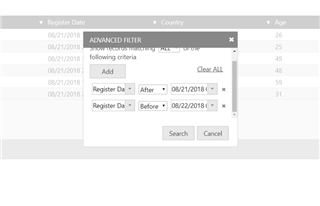
        Correct me if I am wrong, but when filtering with respect to a particular day, for example 08/21/2018, what you actually would want to see are all the records that contain dates between 08/21/2018 00:00 and 08/22/2018 00:00 excluding? Currently the Filtering mode is set to “simple, which allows you to have a single filtering condition only. Changing it to “advanced” would allow you to set multiple conditions, either with logical “AND” or logical “OR” between them in the filtering dialog that would appear. This is how to change the edit mode:

        features: [

               {

                   name : “Filtering”,

                   mode : “advanced”

               }

           ]

        Try setting the first date to 08/21/2018 00:00 and the condition to “After”, then select “AND” and the second condition would be your end date – 08/22/2018 00:00 with a condition of “Before”. This is what it would look like:


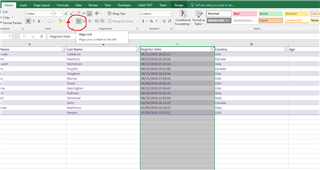
        Regarding the Excel issue – by default MS Excel aligns columns containing dates or numbers to the right, and columns containing text to the left. This setting cannot be set in the xlsx file itself, but it could be changed in Excel after the file has been opened and the given column has been selected – its alignment could be switched to the left by clicking this button:


        If you need any additional assistance, feel free to contact me.

  • You must be logged in to reply to this topic.
Discussion created by
Favorites
Replies
Created On
Last Post
Discussion created by
Ramesh Venkataraman
Favorites
0
Replies
3
Created On
Aug 22, 2018
Last Post
7 years, 6 months ago

Suggested Discussions

Created by

Created on

Aug 22, 2018 11:46 AM

Last activity on

Feb 25, 2026 9:13 AM