Skip to content

Infragistics Community Forum / Web / Ignite UI for React / React Spreadsheet: Not able to render excel with charts on example page

React Spreadsheet: Not able to render excel with charts on example page

New Discussion
Kaveri InfraM
Kaveri InfraM asked on Feb 4, 2022 5:24 PM

Hi All ,

When I try the example as given on your pageĀ https://www.infragistics.com/products/ignite-ui-react/react/components/spreadsheet-overview

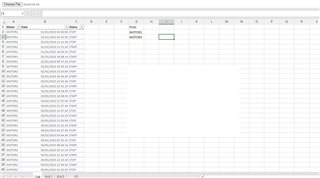
with an excel with charts. the output ui is not able to render the chart but I just see chart data.

My particular requirement is to create a read only excel viewer on my react web page that should render excel files as is (i.e. along with charts graphs images and all) .

Please let me know if this is possible via Ignite UI libraries.

Thanks

Kaveri M.

Sign In to post a reply

Replies

  • 0
    Michael DiFilippo
    Michael DiFilippo answered on Jan 25, 2022 4:16 PM

    Hello and thank you for contacting Infragistics. Our Excel API lets you add charts to the Spreadsheet using our chart adapter module. It can also import/export charts to and from the spreadsheet and Excel. 

    eg. Export a standalone chart to Excel

    https://www.infragistics.com/reactsite/components/excel-library-working-with-charts

    eg. Load a chart in the Spreadsheet

    https://www.infragistics.com/reactsite/components/spreadsheet-chart-adapter

    You may use the CodeSandbox buttons to see the code. If you want to debug the applications I would use the down arrow in the editor in the left pane to download the projects locally and run them that way then rely on the editor. 

    Let me know if you have any questions. 

    • 0
      Kaveri InfraM
      Kaveri InfraM answered on Feb 3, 2022 8:26 AM

      Hi ,

      Thanks for this Information.

      We tried to implement the same but when we try to open large spreadsheets ~5mb in size the app fails to render the same on UI . 
      Pls check following code in Exceluitlity 

      Workbook.load(data, new WorkbookLoadOptions(), (w) => {

      resolve(w);

      }, (e) => {

      reject(e);

      });

      We are getting this error :

      Index was out of range. It must be non-negative and less than the size of the collection.

      • 0
        Michael DiFilippo
        Michael DiFilippo answered on Feb 3, 2022 3:08 PM

        Hello, 

        It appears the codesandbox samples are missing our layouts package. It will prompt you to add it and after a refresh it will eventually load the sample. eg. https://codesandbox.io/s/lucid-curie-qz04z

        If you wish to dive into this locally, you can access the source of the sample here
        https://github.com/IgniteUI/igniteui-react-examples/tree/vnext/samples/excel/excel-library/working-with-charts

        This repository contains links to codesandbox and live demos that is hosted in our documentation

      • 0
        Kaveri InfraM
        Kaveri InfraM answered on Feb 3, 2022 5:06 PM

        Hi Michael ,

        I have observed an issue with rendering charts on .xls files.

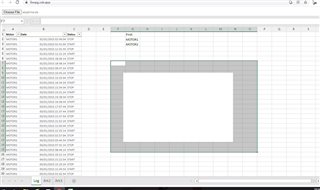
        As you can see in the screenshot I am getting a black spot in the middle of excel.

        Also adding the code.

        import React from 'react';
        import ReactDOM from 'react-dom';
        import './index.css';
        import { ExcelUtility } from './ExcelUtility';
        import { IgrExcelXlsxModule } from 'igniteui-react-excel';
        import { IgrExcelCoreModule } from 'igniteui-react-excel';
        import { IgrExcelModule } from 'igniteui-react-excel';
        import { IgrSpreadsheetModule } from 'igniteui-react-spreadsheet';
        import { IgrSpreadsheet } from 'igniteui-react-spreadsheet';
        import { IgrSpreadsheetChartAdapterModule } from 'igniteui-react-spreadsheet-chart-adapter';
        import { SpreadsheetChartAdapter } from 'igniteui-react-spreadsheet-chart-adapter';
        import { Worksheet } from 'igniteui-react-excel';
        import { WorksheetCell } from 'igniteui-react-excel';
        import { ChartType, ChartTitle, FormattedString } from 'igniteui-react-excel';
        
        IgrExcelCoreModule.register();
        IgrExcelModule.register();
        IgrExcelXlsxModule.register();
        IgrSpreadsheetModule.register();
        IgrSpreadsheetChartAdapterModule.register();
        
        export default class SpreadsheetAdapterForCharts extends React.Component {
        public spreadsheet: IgrSpreadsheet;
        
        constructor(props: any) {
        super(props);
        this.onSpreadsheetRef = this.onSpreadsheetRef.bind(this);
        }
        
        public render(): JSX.Element {
        return (
        <div className="container sample">
        <div className="options horizontal">
        <input type="file" onChange={(e) => this.openFile(e.target.files as FileList)} accept=".xls, .xlt, .xlsx, .xlsm, .xltm, .xltx"/>
        </div>
        <IgrSpreadsheet ref={this.onSpreadsheetRef} height="calc(100% - 30px)" width="100%" />
        </div>
        );
        }
        public openFile(selectorFiles: FileList) {
        if (selectorFiles != null && selectorFiles.length > 0) {
        ExcelUtility.load(selectorFiles[0]).then((w) => {
        this.spreadsheet.workbook = w;
        }, (e) => {
        console.error("Workbook Load Error");
        });
        }
        }
        
        public onSpreadsheetRef(spreadsheet: IgrSpreadsheet) {
        if (!spreadsheet) { return; }
        
        this.spreadsheet = spreadsheet;
        this.spreadsheet.chartAdapter = new SpreadsheetChartAdapter();
        const url = "https://static.infragistics.com/xplatform/excel/SalesData.xlsx"
        ExcelUtility.loadFromUrl(url).then((w) => {
        this.spreadsheet.workbook = w;
        });
        }
        /*
        public onSpreadsheetRef(spreadsheet: IgrSpreadsheet) {
        
        if (spreadsheet) {
        
        this.spreadsheet = spreadsheet;
        this.spreadsheet.chartAdapter = new SpreadsheetChartAdapter();
        const url = "https://static.infragistics.com/xplatform/excel/ChartData.xlsx";
        // ExcelUtility.loadFromUrl(url);
        ExcelUtility.loadFromUrl(url).then((w) => {
        this.spreadsheet.workbook = w;
        
        const sheet: Worksheet = this.spreadsheet.workbook.worksheets(0);
        
        sheet.defaultColumnWidth = 450 * 20;
        sheet.rows(0).height = 150 * 20;
        
        const cell1: WorksheetCell = sheet.getCell("A1");
        const cell2: WorksheetCell = sheet.getCell("B1");
        const cell3: WorksheetCell = sheet.getCell("C1");
        const cell4: WorksheetCell = sheet.getCell("D1");
        
        const dataCellAddress = "A3:D6";
        
        const title: ChartTitle = new ChartTitle();
        title.text = new FormattedString("Line Chart");
        const chart1 = sheet.shapes().addChart(ChartType.Line, cell1, { x: 5, y: 5 }, cell1, { x: 90, y: 90 });
        chart1.chartTitle = title;
        chart1.setSourceData(dataCellAddress, true);
        
        const title2: ChartTitle = new ChartTitle();
        title2.text = new FormattedString("Column Chart");
        const chart2 = sheet.shapes().addChart(ChartType.ColumnClustered, cell2, { x: 5, y: 5 }, cell2, { x: 90, y: 90 });
        chart2.chartTitle = title2;
        chart2.setSourceData(dataCellAddress, true);
        
        const title3: ChartTitle = new ChartTitle();
        title3.text = new FormattedString("Area Chart");
        const chart3 = sheet.shapes().addChart(ChartType.Area, cell3, { x: 5, y: 5 }, cell3, { x: 90, y: 90 });
        chart3.chartTitle = title3;
        chart3.setSourceData(dataCellAddress, true);
        
        const title4: ChartTitle = new ChartTitle();
        title4.text = new FormattedString("Pie Chart");
        const chart4 = sheet.shapes().addChart(ChartType.Pie, cell4, { x: 5, y: 5 }, cell4, { x: 90, y: 90 });
        chart4.chartTitle = title4;
        chart4.setSourceData(dataCellAddress, true);
        });
        }
        }*/
        }
        
        // rendering above class to the React DOM
        ReactDOM.render(<SpreadsheetAdapterForCharts />, document.getElementById('root'));

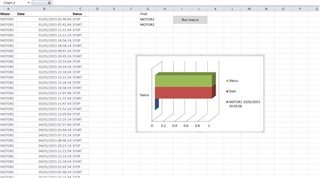
        Actual file looks like this ->

        Is it like this utility only supports .xlsx files?

      • 0
        Michael DiFilippo
        Michael DiFilippo answered on Feb 3, 2022 6:35 PM

        Can you point out the black spot artifact you are mentioning? I cannot tell from your screenshots. Preferably, please modify the sample I linked above and attach it.   

      • 0
        Kaveri InfraM
        Kaveri InfraM answered on Feb 4, 2022 5:41 AM

        Hi Michael

        Apologies, Its a Typo. I am referring to a blank spot / area in the middle of screen .

        PFA screenshot

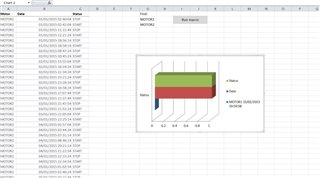
        Ideally a colored chart must appear in the blank area like below.

        Code sandbox link

        https://codesandbox.io/s/github/IgniteUI/igniteui-react-examples/tree/master/samples/excel/spreadsheet/adapter-chart?fontsize=14&hidenavigation=1&theme=dark&view=preview&file=/src/index.tsx

        Also sharing Sample file I used .

      • 0
        Michael DiFilippo
        Michael DiFilippo answered on Feb 4, 2022 5:24 PM

        Hello and thank you for following up.

        3d Charts are not supported chart types. Please submit and new product idea.

        I changed your chart type to a normal cluster bar and it's not loading in the spreadsheet. I logged a development issue and opened a support ticket for you. C-00222016

        You can access it after signing into your account on the Infragistics website, here: https://account.infragistics.com/support-cases

        You can suggest new product ideas for future versions (or vote for existing ones) at https://www.infragistics.com/community/ideas

        Submitting your idea will allow you to communicate directly with our product management team, track the progress of your idea at any time, see how many votes it got, read comments from other developers in the community, and see if someone from the product team has additional questions for you.
        Remember when submitting your idea to explain the context in which a feature would be used and why it is needed as well as anything that would prevent you from accomplishing this today. You can even add screenshots to build a stronger case. Remember that for your suggestion to be successful, you need other members of the community to vote for it.

        Let me know if you have any questions.

  • You must be logged in to reply to this topic.
Discussion created by
Favorites
Replies
Created On
Last Post
Discussion created by
Kaveri InfraM
Favorites
0
Replies
7
Created On
Feb 04, 2022
Last Post
4 years ago

Suggested Discussions

Created by

Created on

Feb 4, 2022 5:24 PM

Last activity on

Feb 19, 2026 4:31 PM