


Build Modern, Data-Rich Web Apps
Complete library of hundreds of UI controls and components for every major web framework, including the fastest data grids and data charts on the planet optimized for speed and performance.
Get Started with Angular

Get Started with Blazor

Get Started with React

Get Started with Web Components
Everything You Need To Build High-Performance Web Apps
Jumpstart your next project with the most complete library of enterprise-grade JavaScript and .NET UI components, supporting your favorite frameworks.
UI components for everything
120+ high-performance charts, grids and JavaScript UI components for frameworks including Angular, Blazor, React and Web Components. And with responsive design built into our charts and grids – they are optimized with our many layout options.

Advanced UI with unmatched performance
We know you build sophisticated applications that require differentiating performance and speed. Ignite UI includes UI controls that your users will love, like Spreadsheet, Excel Library, Pivot Grid, Hierarchical Grid and even a DockManager, a desktop-like windowing UX. And we bake performance in from the beginning – our real-time data, and high-volume rendering are unmatched in the market.

Unrivaled product support
Backed by live, 24x5 support via phone, chat, forums and dedicated account managers in offices around the world. With comprehensive documentation, components samples, sample applications, and more.

Creating apps that always look good
Don’t worry about how your app looks in different browsers as Ignite UI supports modern browsers, with compatibility for the old ones. And with our built-in themes, support for custom themes, Bootstrap theme support, Theme Roller support, and on-the-fly Bootstrap to Theme Roller conversion — your apps will look good no matter what framework you choose!

Data visualization and dashboards
With more than 65 chart and series types, you can deliver beautiful, interactive charts, and dashboards. And with the Motion Framework you can tell the story of your data in a way that allows end users to experience a fully customizable immersive and animated user experience. This touch-enabled, real-time streaming, and high-volume data rendering combines with millisecond-level displays of millions of data points to deliver an exceptional experience!

What People are Saying About Ignite UI








We were using another UI component library in the past and were quite happy with it. Came across Ignite UI when we needed a powerful data grid for one of our projects. Ignite UI was the best solution for virtualization, paging, and column-level operations. Their support is also top notch. We've had a number of requests since we started and they have all been dealt with or resolved super fast.

The framework support is excellent. I can use the same high-performance data grids and charts in Angular, React, Web Components, Blazor or any other popular framework. There are all the features I needed – from basic to advanced. I particularly liked the fast Angular data grid.
The grid is very powerful: fast rendering, excellent filtering, sorting, grouping, and looks clean out of the box. Myteam really appreciates how feature-rich it is.
The Grid handles huge datasets with smooth scrolling and includes features like filtering, grouping, inline editing, and Excel export right out of the box.
The diversity of chart types and customization capabilities is outstanding. Perfect for complex, real-time visualizations.
Trusted by the World's Best



With Ignite UI for Angular, the grid performance was fast and included improved row selection with features such as multi-click, use of tabs that made data entry easier, and more friendly navigation.

UK Investment Bank
Learn how England’s most prominent investment bank used Ignite UI’s Angular components to upgrade a strategic pricing application with a modern, intuitive and user-friendly UI. Read More
Popular Ignite UI Components
Built for the enterprise with unique features and incomparable performance.
Select a Framework To Get Started
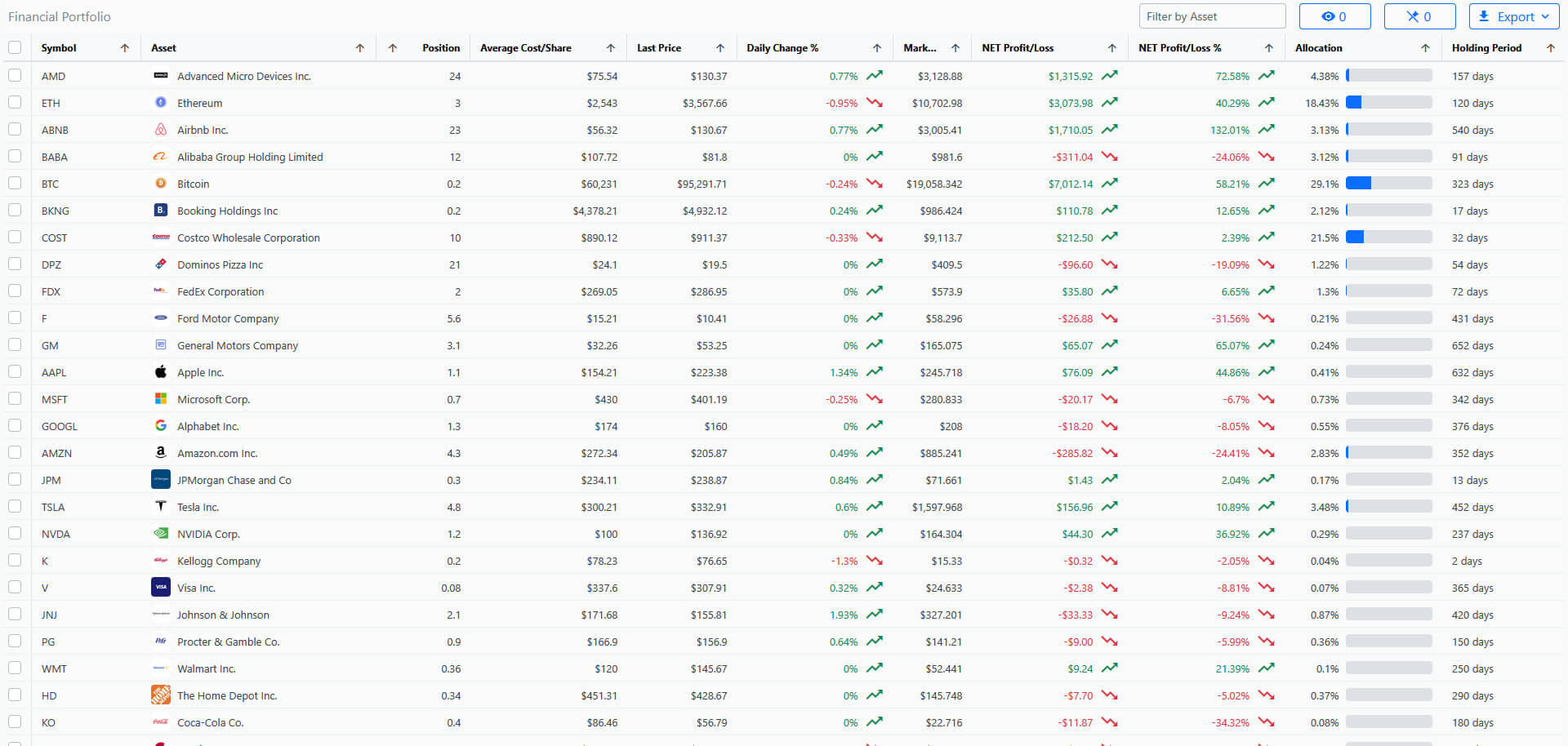
- Grids The fastest grids on the market, providing line of business features, touch support, and responsive web design features. Works with popular open source libraries and data sources.
- Charts Visualize large amounts of business, financial/stock, scientific and/or industry data in near real-time with the most complete, interactive charts on the market.
- Dock ManagerProvides a complete desktop-like windowing experience, splitting complex layouts into smaller, easier-to-manage panes.

Inspiration Is Everywhere
Get started on your next project with over 100 JavaScript and .NET UI components and designs to help you create responsive, modern web apps supporting your favorite frameworks.
View All Reference Applications
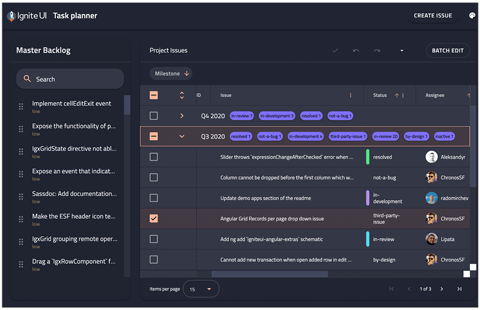
Angular - Task Planner
The Task Planner application provides an effective means for managing projects and related tasks.
Get the App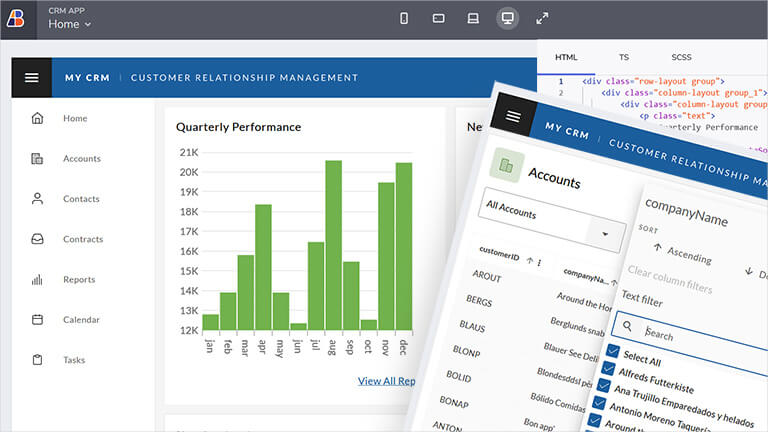
CRM App
A master-detail style app for managing customer details, inspired by HubSpot. Includes responsive views for Overview dashboard and customer details with multiple tabs.
Get the App
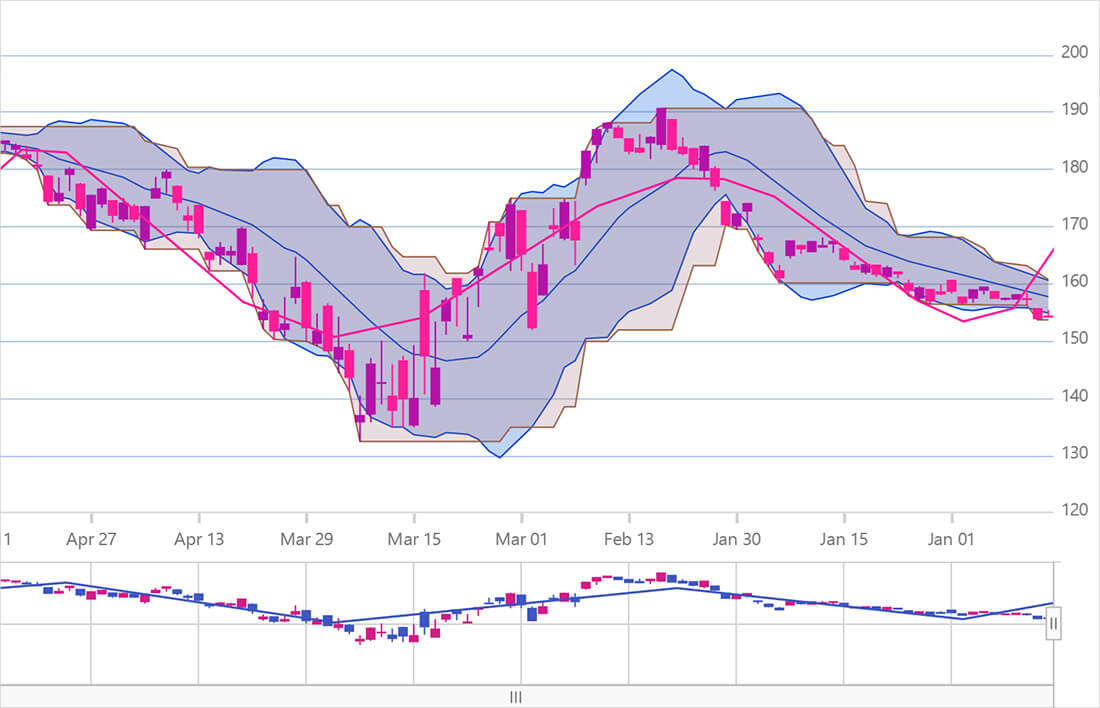
React - Stock Chart App
Track stocks and chart over time with this robust financial application.
Get the App
What's New in Ignite UI
Pushing the limits of what is possible on the web, with blazing fast, high-performance components that increase developer productivity at every turn.
Architected for total optimization in file size and render speed, Ignite UI is the only choice for modern web apps that demand the best user experience. Our stand-out features include:
- Ignite UI for Angular 20.1 Release Powerful add-ons like cell merging, which enhances readability by eliminating duplicate values, and dual-side column pinning for maximum flexibility and control; you can deliver cleaner data displays, optimized datasets, and a smoother user experience.
- Ignite UI for React 19 Component Suite Delivering a more native, performant, and memory-efficient experience for React developers — without sacrificing the power or flexibility. With several complex data visualization components added to our React grids and charts.
- Azure Map Support for Modern Web Support for Azure-based map imagery, allowing developers to display detailed, dynamic maps across multiple application types. You can combine multiple map layers, visualize geographic data, and create interactive mapping experiences with ease.
- Enhanced React Wrappers + State Management Enable near-instantaneous rendering and smooth scrolling with our updated, lighter Wrappers component and streamlined State Management allowing for Ignite UI for React to take up to 3 times less memory when using the IgrGrid component.
Choose the Plan That's Right for You!
Explore our pricing bundles crafted to fit your needs, providing comprehensive solutions for every project size. With user experience 'built-in' to every control and our commitment to a continuous release schedule, you're guaranteed the fastest updates across all major frameworks, ensuring your applications stay cutting-edge.
- 100s of UI controls and components for every major web framework
- Fastest way to build modern web apps
MULTI-YEAR DISCOUNT
- Everything in Ignite UI and Professional
- UI prototyping, design systems, user testing, app building and code gen
- The only complete UI/UX toolkit for building high performance, modern web, desktop and mobile applications
MULTI-YEAR DISCOUNT
- Low-code WYSIWYG drag and drop
- Full code generation capabilities
- Comprehensive UI component library for web
Multi-year discount
Join the Conversation
Frequently Asked Questions
Questions and Answers for Ignite UI
What is Ignite UI?
Ignite UI is a complete library of user interface (UI) components for building data-rich and responsive web apps, including 100s of data charts, grids and components for Angular, Blazor, React and Web Components.
What makes Ignite UI different from other UI toolkits?
Ignite UI is the most complete library of enterprise-grade UI components available, including the fastest grids and charts on the market. Backed by Infragistics 30+ years of industry leadership and our award-winning live support, Ignite UI provides you with everything you need to build modern, progressive web apps
How does the pricing and licensing for Ignite UI work?
Ignite UI is licensed via a subscription model. A single developer license for Ignite UI is $1,355 USD for a one-year subscription, including one year of standard support and updates. We also offer discounts for multi-year licenses. Please refer to our Pricing page for more information on pricing.
How do I get started with Ignite UI?
The best place to begin is with our Getting Started Documentation.
Where can I find component samples and sample applications?
The team at Infragistics maintains a comprehensive library of code samples which you can access here. We also maintain a library of sample applications, which you can access here.
Does Ignite UI support accessibility (a11y)?
Each product and each component in the Ignite UI product family is implemented according to the latest accessibility guidelines and specifications. All components have been tested using OS or Browser provided accessibility technology – screen readers. The team ensures not only that the guidelines are implemented, but also that the actual content delivered to visually impaired or blind people is actually consumable and user-friendly for them.
Does Ignite UI support internationalization (i18n)?
Each product in the Ignite UI product family is built with internationalization in mind. Every product offers internationalization mechanisms specific to the supported framework. Languages supported out of the box are English, Japanese, Korean and Spanish. Ignite UI for jQuery and its derivative products – Ignite UI for MVC and Ignite UI for ASP.NET Core also include out of the box language support for French, German, Russian and Bulgarian.
Is Ignite UI compatible with .NET 8?
As of the Infragistics Ultimate 22.2 release, all our components and solutions are all now .NET 8 compatible, including ASP.NET (Core and MVC) and Blazor.
Connect with Infragistics
Follow Us for the Latest News and Updates