

Ultimate UI for WPF
Build Beautiful, Modern WPF Business Applications
Create high-performance, Microsoft® Office-inspired apps for desktop and touch devices with Ultimate UI for WPF. A complete library of 100+ WPF controls, including lightning-fast grids and charts, and dynamic data visualizations. All .NET 8 compatible.

The Fastest WPF Data Grid
Our WPF data grid provides high-performance and versatility, supporting complex data entry scenarios and custom layouts, with the ability to quickly configure and bind data directly from XAML – with no code required! Features include:
- Hierarchical WPF Data Grid
- Asynchronous Paging Data Sort
- Excel-like Behaviors
- Sorting & Grouping
- Enhanced Filtering
- Fixed Headers
- Pinned Rows
- Moveable Columns
- Complete Stability
- Real-time Highlighting
- Excel Export
- Calculation Manager Support
- External Sorting
- Grouping
- Filtering
- Aggregation
- Cell Merging
- Data Grid Configurator
- Visual Configuration
Stories That Truly Matter
More than two million developers use Infragistics UX and UI toolkits to support and accelerate their application development.




Infragistics helps us to move faster and accelerate our app building. Their controls are user-friendly and more intuitive, and they help us deliver a great user experience.

Bently Nevada
Learn how Bently Nevada uses Ultimate UI for WPF to build apps faster and offer more intuitive controls to their customers.Read More
The Fastest WPF Charts
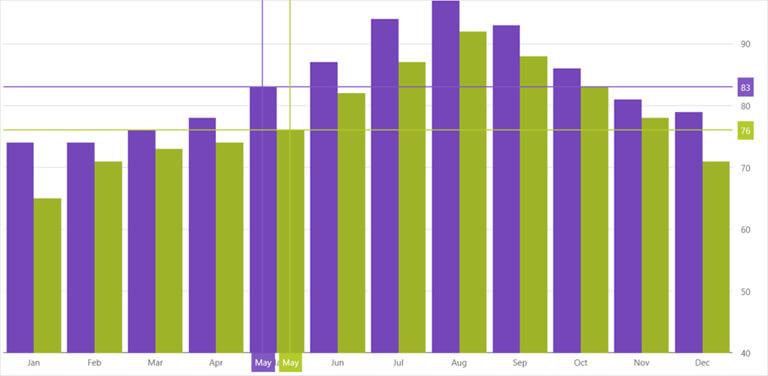
Build feature-rich WPF charts with less coding. Fulfill your fintech and business needs, and render more than 60+ high-fidelity WPF charts including financial, data, category, sparkline and more.
A WPF Chart for Every Occasion
Your WPF charts shouldn’t just be fast; they should be all-encompassing. With every common chart type – bar chart, line chart, pie chart, area chart, and more – Ultimate UI for WPF enables you can visualize your data the way you prefer. Features include:
- Easy Data Binding
- Intelligence & Style by Default
- Callouts Layer
- Crosshair Lines
- Crosshairs Annotation
- Final Values Annotation
- Category Highlight Layer
- Item Highlight Layer
- Category Tooltip Layer
- Item Tooltip Layer
- Category Chart Configurator
- Visual Configuration
- Easy Property Editing
Featured WPF Controls
Built for the enterprise with unique features and incomparable performance.
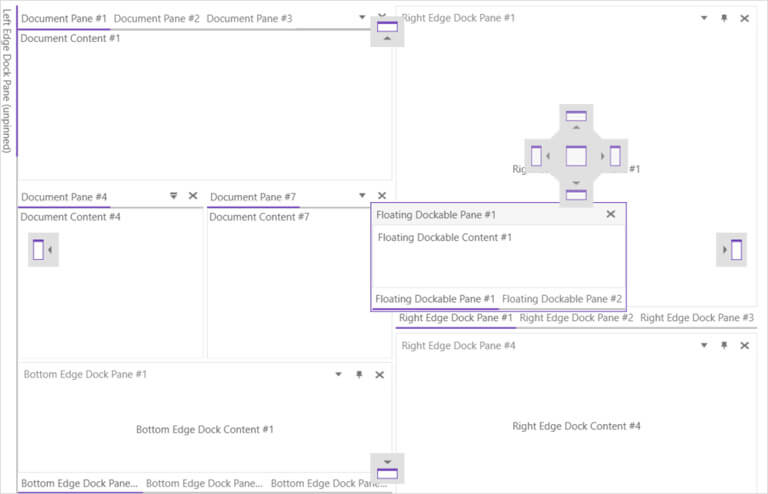
- Dock Manager Manage the user interface and enable dynamic reconfiguration of your workspace with docking inspired by Visual Studio®. Learn More
- Financial Chart Lightweight and high-performance, making it easy to display financial data using a simple and intuitive API. Learn More
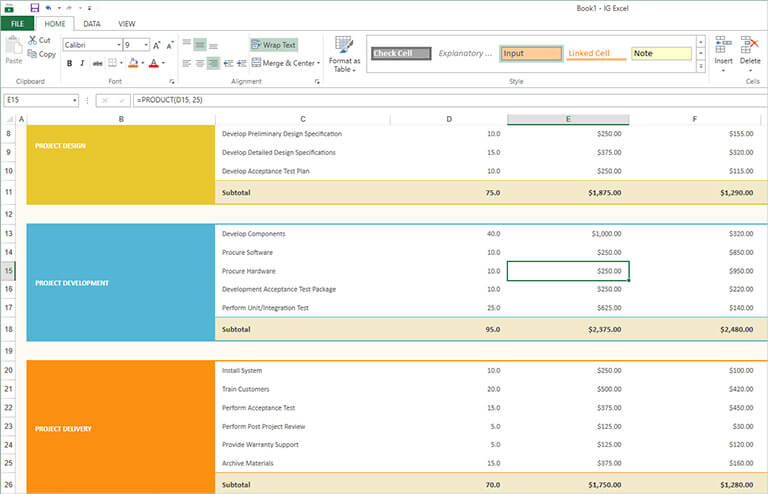
- Spreadsheet Embed Microsoft® Excel® document creation and editing experiences right into your WPF applications. Learn More

WPF Controls to Jumpstart Your Next Project
60+ full-featured, easy-to-use WPF controls give you the power to create engaging modern and Microsoft Office-inspired apps for desktop and touch devices.
Inspiration Is Everywhere
Get started on your next great WPF project.
View All Reference Applications
IG Outlook App
The IG Outlook WPF sample application provides guidance on how to build a Microsoft Outlook-inspired application using Microsoft’s Patterns & Practices Prism library.
Get the App
Finance App
The Finance Dashboard is an interactive application demonstrating the capabilities of Infragistics WPF Data Chart and Tree Map controls applied to the Financial Services industry.
Get the App
IG Word App
The IG Word sample application provides users with a familiar Microsoft Word-inspired user interface with visuals and styles inspired by MS Office software, and patterns and practices from the Microsoft Prism library.
Get the AppResources
Leverage these helpful resources to learn how to build better desktop apps, faster.
- 15 WPF Performance TipsUse these 15 tips to identify potential issues and improve performance of your WPF application. Learn More
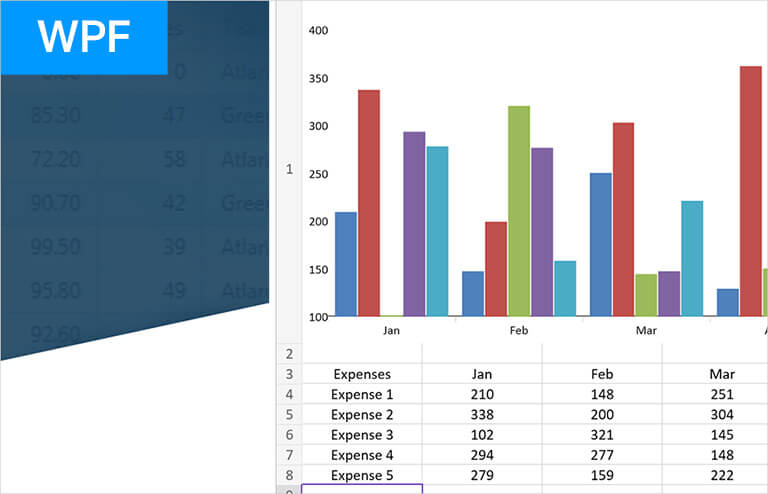
- Create Excel Charts in WPF Learn how to dynamically create Excel charts in C# using the xamSpreadsheet control in a WPF .NET Core application. Learn More
- Test Automation for Micro Focus UFTAutomate testing of your user interface and allow full regression testing of applications developed using Infragistics Ultimate UI for WPF. Learn More


Help and Samples
Everything you need to get started with your next WPF project!
Choose the Plan That's Right for You!
Lightning-fast, touch-friendly UI controls. Includes data grids, trees, editors, Office ribbon, and Outlook®-style scheduling. Includes access to source code
Multi-year discount
- Everything in Ignite UI and Professional
- UI prototyping, design systems, user testing, app building and code gen
- The only complete UI/UX toolkit for building high performance, modern web, desktop and mobile applications
MULTI-YEAR DISCOUNT
- Everything in Ignite UI
- Comprehensive UI component library for web, mobile and desktop developers
MULTI-YEAR DISCOUNT
Join the Conversation

Frequently Asked Questions
Questions and Answers for Ultimate UI for WPF
Why should I choose Ultimate UI for WPF Controls?
Ultimate UI for WPF is a complete library of WPF user interface (UI) controls for building modern Microsoft-Office-inspired desktop applications, including 50+ data charts, grids, and components.
What makes Ultimate UI for WPF Controls better than other desktop UI toolkits?
Ultimate UI for WPF is the most complete library of enterprise-grade, Microsoft Office-inspired desktop UI controls available. Backed by Infragistics 30+ years of industry leadership and our award-winning live support, Ultimate UI for WPF provides you with everything you need to build modern, Microsoft Office-inspired desktop applications.
What is the pricing and licensing for Ultimate UI for WPF Controls?
Ultimate UI for WPF is licensed via a subscription model. A single developer license starts at $1,255 USD for a one-year subscription, including one year of standard support and updates. We also offer discounts for multi-year licenses. Please refer to our Pricing page for more information on pricing.
How do I get started with Ultimate UI for WPF Controls?
The best place to get started would be the documentation and getting started materials for each of our toolsets.
Where can I find WPF samples and sample applications?
The team at Infragistics maintains a comprehensive library of WPF code samples which you can access here. We also maintain a library of WPF sample applications, which you can access here.
Is Infragistics Ultimate UI for WPF compatible with .NET 8?
As of the Infragistics Ultimate 22.2 release, all our components and solutions are all now .NET 8 compatible.
Connect with Infragistics
Follow Us for the Latest News and Updates