

Ultimate UI for Windows Forms
Build Modern Windows Forms Apps Faster
A complete library of more than 100+ Windows Forms UI controls for desktop developers, including data grids, high-performance charts, Microsoft® Office-style user interface tools, dashboards, and reports with touch and gesture support. All .NET 7 compatible.
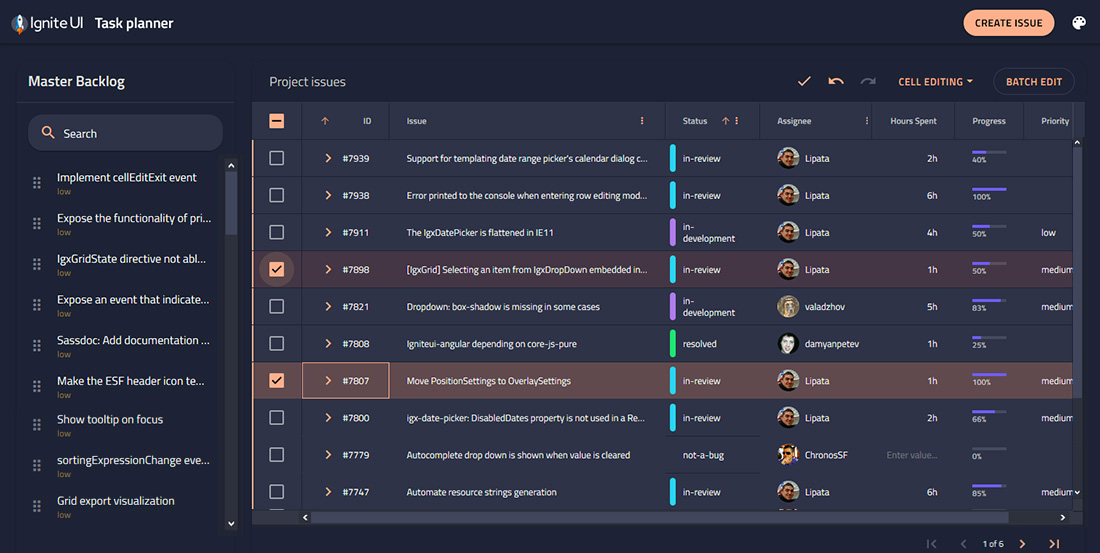
The Fastest Windows Forms Data Grid
Our Windows Forms data grid provides highest level of performance and versatility, with a rich feature set offering Microsoft® Excel®-like functionality that will accentuate your data-centric desktop applications. Features include:
- High-Speed Data Entry
- Custom Layouts
- Microsoft® Excel Operations
- Virtual Data
- Touch Experience
- Explorer View
- Editing Capability
- Item Selection
- Visual Display
- Business Intelligence
- Drag and Drop
- Filtering & Analysis
- Drilldown
- Excel Editing & Formatting
- Chart Support
- Sorting & Filtering
- List Validation
- Cell Drop Down
- Table Creation and Management
- Format Cells Dialog
- View Style
- Multi-Column Grid
- Databinding Support
Stories That Truly Matter
More than two million developers use Infragistics UX and UI toolkits to support and accelerate their application development.




The new charts load data much more quickly than before. The chart control also gives us much greater flexibility as the end-user can split the display or chart into multiple charts easily, letting them view several critical functions quickly at a glance.

ABB India
Learn why global technology leader, ABB, relies on Ultimate UI for Windows Forms toolkits to help handle real-time data speeds and add flexibility to their chart controls. Read More
The Fastest Windows Forms Charts
Build feature-rich Windows Forms charts with less coding. Ultimate UI for Windows Forms enables you to render more than 60+ high-fidelity Windows Forms charts and take advantage of touch and animate data over time.
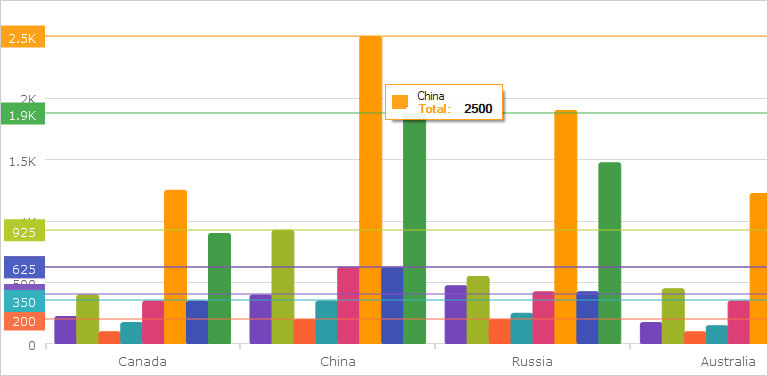
A Windows Forms Chart for Every Occasion
Your charts shouldn’t just be fast; they should be all-encompassing. With every common category chart type – bar, line, pie, area, and more – you can visualize your data the way you prefer.
- Easy Data Binding
- Smart Data Adapter
- Slice Selection
- Legend Support
- Real-time Charting
- Financial Indicators
- Trend Lines
- Axes and Legend Support
- Multiple Interactions
- Fully Customizable
Featured Windows Forms Controls
Built for the enterprise with unique features and incomparable performance.
- Excel LibraryWork with spreadsheet data, using Microsoft® Excel® spreadsheet objects like Worksheets, Cells, Formulas and more. Learn More
- SchedulingSchedule provides a common scheduling solution for presenting and managing time periods and the associated activities. Learn More
- Menus Replicate the look, feel and functionality of Microsoft® Office applications including the Nav bar, toolbars, menus and list views. Learn More

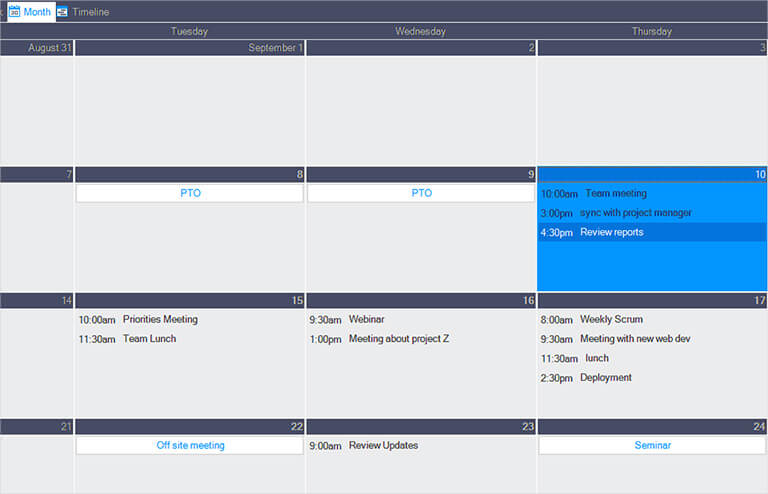

Windows Forms UI Controls to Jumpstart Your Next Project
60+ full-featured, easy-to-use Windows Forms components and controls give you the power to create engaging modern and Microsoft Office-inspired desktop applications.
Inspiration Is Everywhere
Get started on your next great Windows Forms project.
View All Reference Applications
Elemental Retail App
This retail application highlights the use of Carousel, Chart and Pivot Grid controls tracking sales of individual clothing items and styles.
Get the App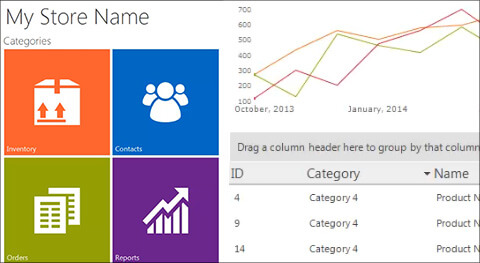
Inventory Management App
This Retail Inventory Management application highlights the use of Chart, Grid, Schedule and more, tracking inventory and scheduling orders for retail stores.
Get the App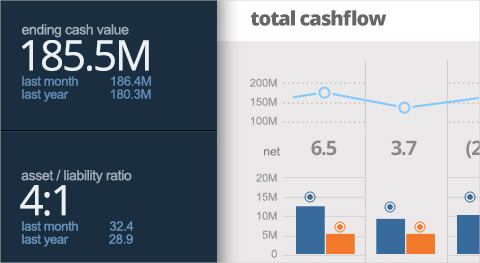
Cashflow Dashboard App
The Cashflow Dashboard app is an interactive application demonstrating the capabilities of Infragistics Grid, Data Chart and Panel controls to make it easier to make data-driven business decisions.
Get the AppResources
Leverage these helpful resources to learn how to build better web apps, faster.
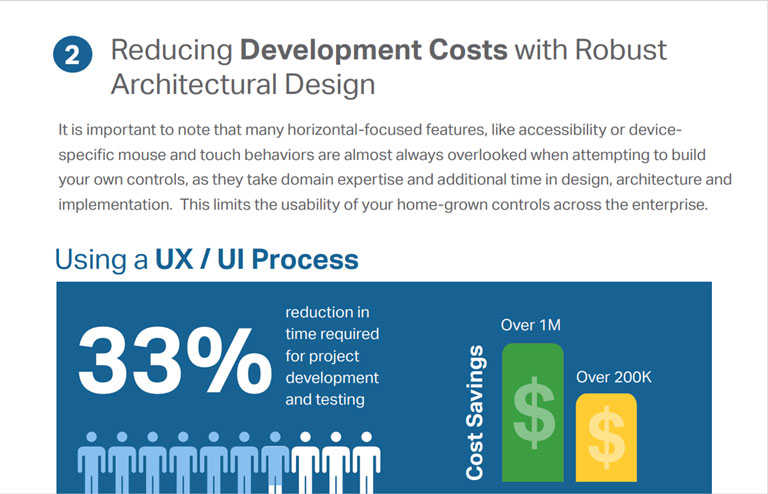
- UI Toolkit StandardizationLeveraging a standard UI toolkit can help reduce project development and testing time by 33%. Read this whitepaper and learn how your organization can reduce time-to-market and development costs. Learn More
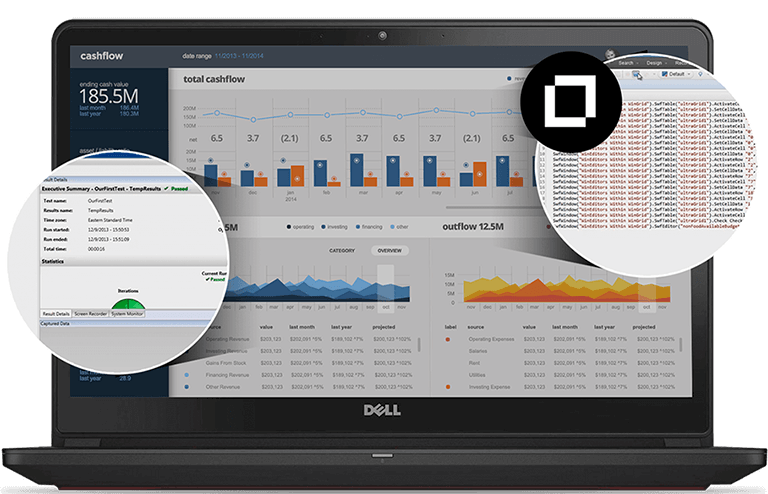
- Test Automation for Micro Focus UFT Automate testing of your Windows Forms application’s user interface and allow full regression testing of your applications developed using Infragistics Ultimate UI for Windows Forms. Learn More
Help and Samples
Everything you need to get started with your next Windows Forms project!
Choose the Plan That's Right for You!
Includes 100+ high-performing UI controls covering every aspect of enterprise software development. Includes access to source code.
Multi-year discount
- Everything in Ignite UI and Professional
- UI prototyping, design systems, user testing, app building and code gen
- The only complete UI/UX toolkit for building high performance, modern web, desktop and mobile applications
MULTI-YEAR DISCOUNT
- Everything in Ignite UI
- Comprehensive UI component library for web, mobile and desktop developers
MULTI-YEAR DISCOUNT
Join the Conversation

Infragistics Windows Forms Release Notes - July 2022: 21.1, 21.2, 22.1 Service Release
Andrew Goldenbaum
Ignite UI for Blazor - What’s New in 22.1
Brian Lagunas
Ignite UI for Blazor - What’s New in 21.2
Brian LagunasFrequently Asked Questions
Questions and Answers for Windows Forms UI Controls
What is Ultimate UI for Windows Forms?
Ultimate UI for Windows Forms is a complete library of user interface (UI) controls and components for every aspect of desktop development, including 100+ data charts, grids, controls, and components.
What makes Ultimate UI for Windows Forms different from other desktop UI toolkits?
Ultimate UI for Windows Forms is the most complete library of enterprise-grade, UI controls and components for desktop development. Backed by Infragistics 30+ years of industry leadership and our award-winning live support, Ultimate UI for Windows Forms provides you with everything you need to build modern desktop applications.
How does the pricing and licensing for Ultimate UI for Windows Forms work?
Ultimate UI for Windows Forms is licensed via a subscription model. A single developer license starts at $1,195 USD for a one-year subscription, including one year of standard support and updates. We also offer discounts for multi-year licenses. Please refer to our Pricing page for more information on pricing.
How do I get started with Ultimate UI for Windows Forms?
The best place to get started would be our documentation and getting started materials for each of our toolsets.
Where can I find Windows Forms control and component samples and Windows Forms sample applications?
The team at Infragistics maintains a comprehensive library of Windows Forms code samples which you can access here. We also maintain a library of sample applications, which you can here.
Is Infragistics Ultimate UI for Windows Forms compatible with .NET 7?
As of the Infragistics Ultimate 22.2 release, all our components and solutions are all now .NET 7 compatible.