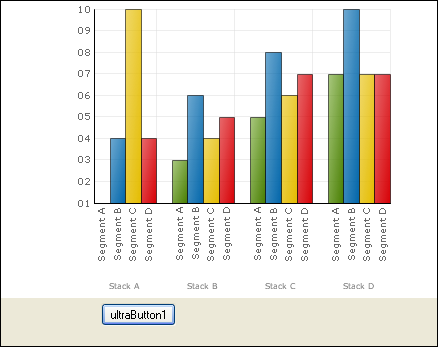


This topic shows how you can export your chart to a PDF file or an XPS file.
When you save and run your application after completing the following steps, your chart should look similar to the following image:
To export your chart to PDF:
From the components tab, drag an UltraButton to your form.
In the Click event handler of the button, add the following example code.
In Visual Basic:
Me.UltraChart1.Data.DataSource = GetStackColumnData()
Me.UltraChart1.Data.DataBind()
Dim r As New Infragistics.Documents.Report.Report()
Dim g As Graphics = r.AddSection().AddCanvas().CreateGraphics()
UltraChart1.RenderPdfFriendlyGraphics(g)
' define a string that contains the path to
' the current user's My Documents folder.
Dim myDocuments As String = _
     System.Environment.GetFolderPath( _
       System.Environment.SpecialFolder.MyDocuments)
' Publish the report to the current user's
' My Documents folder with the name of Report.pdf.
r.Publish(myDocuments + "\Report.pdf", FileFormat.PDF)
System.Diagnostics.Process.Start((myDocuments + "\Report.pdf"))
In C#:
this.ultraChart1.Data.DataSource = GetStackColumnData();
this.ultraChart1.Data.DataBind();
//Create a new report
Infragistics.Documents.Report.Report r =
  new Infragistics.Documents.Report.Report();
Graphics g = r.AddSection().AddCanvas().CreateGraphics();
ultraChart1.RenderPdfFriendlyGraphics(g);
//Define a string that contains the path to
// the current user's My Documents folder.
string myDocuments =
  System.Environment.GetFolderPath(System.Environment.SpecialFolder.MyDocuments);
// Publish the report to the current user's
// My Documents folder with the name of Report.pdf.
r.Publish(myDocuments + "\\Report.pdf", FileFormat.PDF);
Save and run your application