Combo
Use the Combo component to allow users to select an option from a predefined list of choices or enter their own value. When the user clicks on the arrow down icon, a Dropdown list of options is displayed, and the user can select one or more of the options, search for a value, or type their own value into the text box. The Combo is visually identical to the Ignite UI for Angular Combobox Component
Note
The Combo has two layout options: Combo with Multiple Select (Combo) and Single Select Combo (Simple Combo)
Combo Demo
The Combo has two pieces: an Input containing the current selection or a placeholder, and a Dropdown that is shown in order to select one or more items.
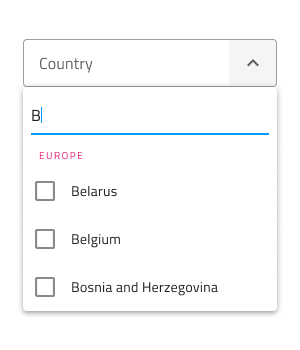
Combo Input Type
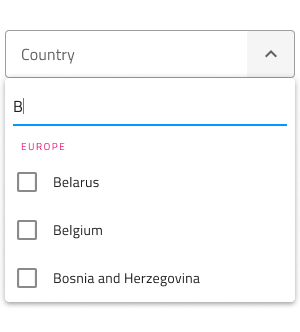
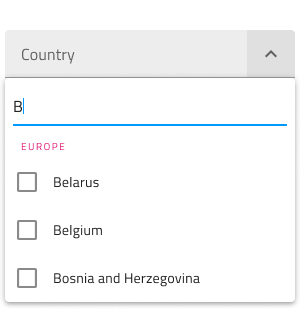
The Combo Input in Figma provides selection between border type for a more structured perception on solid color backgrounds, and a boxed type that is most appropriate when placed on top of a vivid image to improve readability.
| Border | Box |
|---|---|
 |
 |
The Combo Input has a Prefix container which can be switched on and off through the Prefix Container boolean property. Label and Hint could also be switched on or off through their boolean properties.
| With Prefix | With Label | With Hint |
|---|---|---|
 |
 |
 |
 |
 |
 |
Size
The Combo is available in three sizes:
- Large
- Medium
- Small
The Dropdown automatically adjusts its dimensions to match the selected size variant.


Interaction State
In Figma, both border and box type Combos can be set to a Disabled state using the properties panel.

State
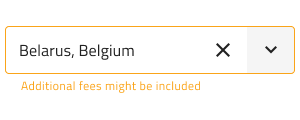
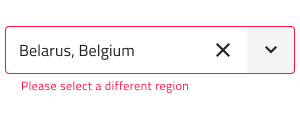
The Combo component supports five states for the enabled variants: Idle, Idle & Hover, Filled, Filled & Hover and Focused, as well as three validation states: Success, Warn, and Error. From the properties panel, the user can easily change the Combo's state and toggle the Dropdown’s visibility, while within the nested Dropdown component, the user can further customize its content. These flexibility enhancements afford a more dynamic interaction design that can seamlessly flow into high-fidelity prototyping.

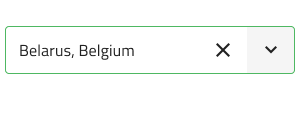
Every experienced designer uses constraints wisely to limit the user input and avoid invalid states, hence the availability of validation styles. Through the available validation styles, the Combo Input is consistent with the standard Input and equipped for sophisticated designs that display success, warn, and error visuals.
| Success | Warn | Error |
|---|---|---|
 |
 |
 |
 |
 |
 |
In Figma changing the states is achieved via the State property from the properties panel.
Dropdown Size
The Dropdown used for the Combo comes with the appropriate sizing for Large, Medium and Small Combo similarly to the normal Dropdown component. The Combo Dropdown can be switched on and off from a boolean property which can visually affect the input, but this is an expected behaviour.

Dropdown Search Input
In Figma the Dropdown contains a Search Input that comes with a selection of states and options for layout akin to the standard Input.

Dropdown Items
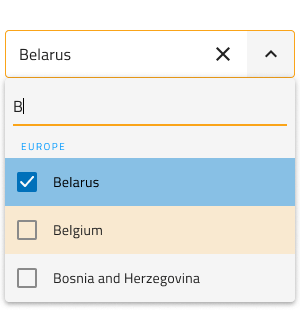
The Dropdown used for the Combo supports two types of items: header and multi-select item. Both are available in Large, Medium and Small sizes. Through headers, it is possible to organize items in groups. In Figma, the Dropdown utilizes the auto layout option, which adjusts the layout, once one or more items get hidden from the layers panel.


Dropdown Item States
The Dropdown items within the Combo support three different states: Idle, Hover and Focused. Disabled and Selected states can be switched on and off from boolean properties.
| Idle | Hover | Focused | Disabled | |
|---|---|---|---|---|
 |
 |
 |
 |
|
| Selected |  |
 |
 |
Styling
The Combo comes with the combined styling flexibility of its input and dropdown pieces. There are options for the input text elements' color, border style and color. For the dropdown one may change the background color, or use the various options related to the items in the Combo Dropdown, such as the Search Input and the items with their background and text colors.
Usage
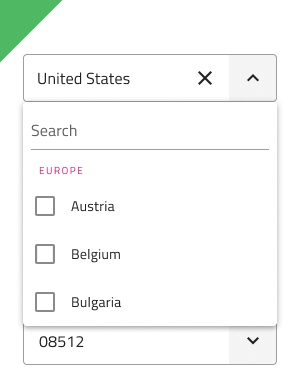
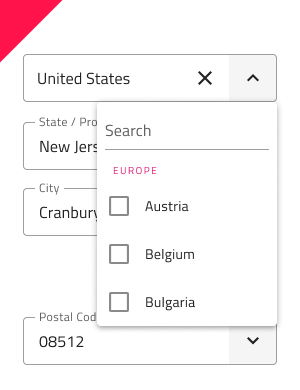
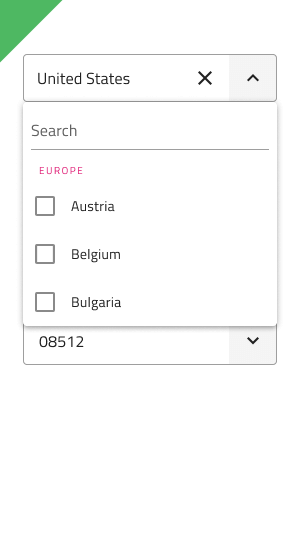
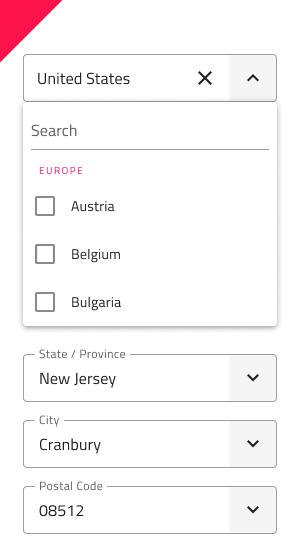
When using the Combo, its input and dropdown should have the same width and their left and right borders should match. Regarding how the dropdown is shown when the Combo is focused, you should always show it on top of the content that follows the Combo triggering its display. Combos don't push content like expansion panels do.
| Do | Don't |
|---|---|
 |
 |
 |
 |
Additional Resources
Related topics:
Our community is active and always welcoming to new ideas.
 GitHub