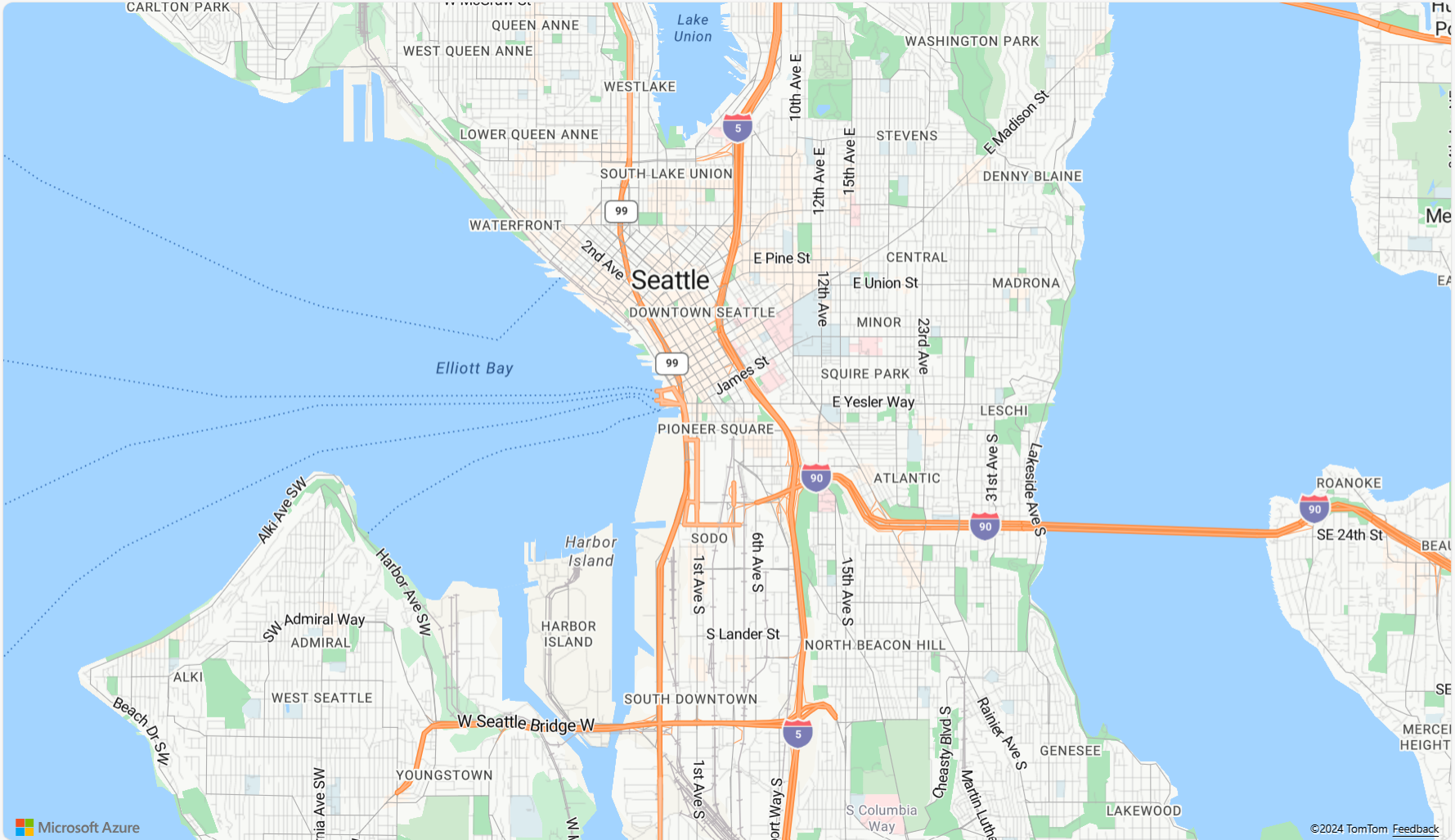
Angular Imagery from Azure Maps

    The Angular IgxAzureMapsImagery is geographic imagery mapping service provided by Microsoft®. It provides several styles of geographic imagery tiles of the world. This geographic imagery service is accessible directly on the www.azure.microsoft.com web site. The Ignite UI for Angular map component can display geographic imagery from Azure Maps in the map’s background content using the IgxAzureMapsImagery class.

    Angular Displaying Imagery from Azure Maps - Overview

    AzureMapsImagery

    Angular Displaying Imagery from Azure Maps - Code Example

    The following code snippet shows how to display geographic imagery tiles from Azure Maps in Angular IgxGeographicMapComponent using IgxAzureMapsImagery class.

    <igx-geographic-map #map
        width="100%"
        height="100%"
        zoomable="true" >
    </igx-geographic-map>
    
    import { IgxGeographicMapComponent } from 'igniteui-angular-maps';
    import { IgxAzureMapsImagery } from 'igniteui-angular-maps';
    // ...
    const tileSource = new IgxAzureMapsImagery();
    tileSource.apiKey = "YOUR_Azure_MAPS_API_KEY";
    tileSource.imageryStyle = AzureMapsImageryStyle.Satellite; // or
    tileSource.imageryStyle = AzureMapsImageryStyle.TerraOverlay; // or
    tileSource.imageryStyle = AzureMapsImageryStyle.Road; //or Traffic & Weather etc.
    
    this.map.backgroundContent = tileSource;
    

    Angular Overlaying Imagery from Azure Maps - Overview

    When working with the IgxGeographicTileSeriesComponent, you can combine overlays (traffic, weather, labels) on top of a base map style such as eg. Satellite, Road, or DarkGrey. Using TerraOverlay with eg. Satellite to visualize terrain.

    • Base Styles: Satellite, Road, Terra, and DarkGrey provide the core background tiles.
    • Overlay Styles: Traffic and Weather imagery (e.g., TrafficRelativeOverlay, WeatherRadarOverlay) are designed to be layered on top of a base style by assigning them to a tile series.
    • Hybrid Styles: Variants like HybridRoadOverlay and HybridDarkGreyOverlay already combine a base style with overlays (labels, roads, etc.), so you don’t need to manage multiple layers manually.

    This design allows you to build richer maps, for example:

    • Displaying Satellite imagery with a TrafficOverlay to highlight congestion on real-world images.
    • Using Terra with WeatherRadarOverlay to visualize terrain with precipitation.
    • Applying DarkGrey with LabelsRoadOverlay for a dashboard-friendly, contrast-heavy view.
    Azure Traffic Tile Series With Background

    Angular Overlaying Imagery from Azure Maps - Code Example

    The following code snippet shows how to display geographic imagery tiles on top of a background imagery joining eg. traffic with a dark grey map for the Angular IgxGeographicMapComponent using IgxAzureMapsImagery and IgxGeographicTileSeriesComponent classes.

    <igx-geographic-map #map height="100%" width="100%" zoomable="true">
      <igx-geographic-tile-series #tileSeries></igx-geographic-tile-series>
    </igx-geographic-map>
    
    export class AppComponent implements AfterViewInit {
      @ViewChild('map', { static: true }) public map!: IgxGeographicMapComponent;
      @ViewChild('tileSeries', { static: true }) public tileSeries!: IgxGeographicTileSeriesComponent;
    
      public azureImagery!: IgxAzureMapsImagery;
      public azureKey: string = "<YOUR_KEY_HERE>";
    
      ngAfterViewInit(): void {
        // Update TileSeries
        const overlay = new IgxAzureMapsImagery();
        overlay.apiKey = this.azureKey;
        overlay.imageryStyle = AzureMapsImageryStyle.TrafficAbsoluteOverlay;
        this.tileSeries.tileImagery = overlay;
    
        // Update Map Background
        this.azureImagery = new IgxAzureMapsImagery();
        this.azureImagery.apiKey = this.azureKey;
        this.azureImagery.imageryStyle = AzureMapsImageryStyle.DarkGrey;
        this.map.backgroundContent = this.azureImagery;
      }
    }
    

    Properties

    The following table summarizes properties of the IgxAzureMapsImagery class:

    Property Name Property Type Description
    apiKey string Represents the property for setting an API key required for the Azure Maps imagery service. You must obtain this key from the azure.microsoft.com website.
    imageryStyle AzureMapsImageryStyle Represents the property for setting the Azure Maps imagery tiles map style. This property can be set to the following AzureMapsImageryStyle enumeration values:
    • Satellite - Specifies the Satellite map style without road or labels overlay
    • Road - Specifies the Aerial map style with road and labels overlay
    • DarkGrey - Specifies a dark grey basemap style for contrast and highlighting overlays
    • TerraOverlay - Specifies a terrain map style with shaded relief to highlight elevation and landscape features
    • LabelsRoadOverlay - One of several overlays of city labels without an aerial overlay
    • HybridRoadOverlay - Satellite background combined with road and label overlays
    • HybridDarkGreyOverlay - Satellite background combined with dark grey label overlays
    • LabelsDarkGreyOverlay - One of several overlays of city labels over a dark grey basemap
    • TrafficDelayOverlay - Displays traffic delays and congestion areas in real time
    • TrafficAbsoluteOverlay - Displays current traffic speeds as absolute values
    • TrafficReducedOverlay - Displays reduced traffic flow with light-based visualization
    • TrafficRelativeOverlay - Displays traffic speeds relative to normal conditions
    • TrafficRelativeDarkOverlay - Displays traffic speeds relative to normal conditions over a dark basemap for enhanced contrast
    • WeatherRadarOverlay - Displays near real-time radar imagery of precipitation
    • WeatherInfraredOverlay - Displays infrared satellite imagery of cloud cover

    API References